Workspace and team
Signing in, who can do what, inviting people, and the settings that shape what Elaris measures.
Signing in
Elaris Visibility has its own login, separate from ElarisLabs Studio. Sign in with Google, or with an email and password (create one from the sign-in page; we email a link to confirm it), at visibility.elarislabs.ai. If you were invited, open the link in your invitation email and sign in with the address it was sent to.
Roles
| Role | Can |
|---|---|
| Viewer | Read every report, answer and page, and use Ask Elaris |
| Member | Everything a viewer can, plus edit prompts, topics, tags, facts and content |
| Admin | Everything a member can, plus settings, integrations, members, competitors and running collection |
| Owner | Everything, including managing other owners |
People can only give roles up to their own. A workspace always keeps at least one owner.
Inviting your team
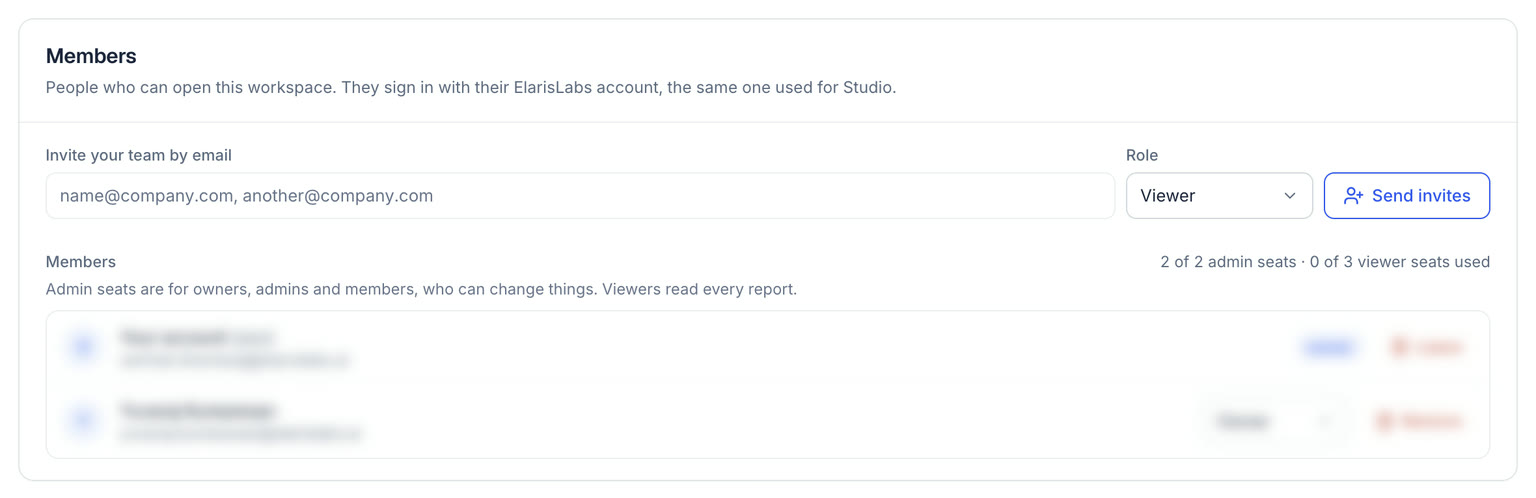
- Open Settings → Members, or Invite your team in the sidebar.
- Enter one or more email addresses, separated by commas, and choose a role.
- Each person gets an email with a link to join. Invitations last 14 days; from the same page you can Resend one (which renews it), copy its link or revoke it.
Your plan sets how many seats a workspace has, and the Members page shows how many are in use. On the Trial and Starter plans a workspace has 2 admin seats, for owners, admins and members (the people who can change things), and 3 viewer seats. On Growth and above, any role takes any seat. An open invite holds its seat until it's accepted, revoked or expires.
Regions and languages
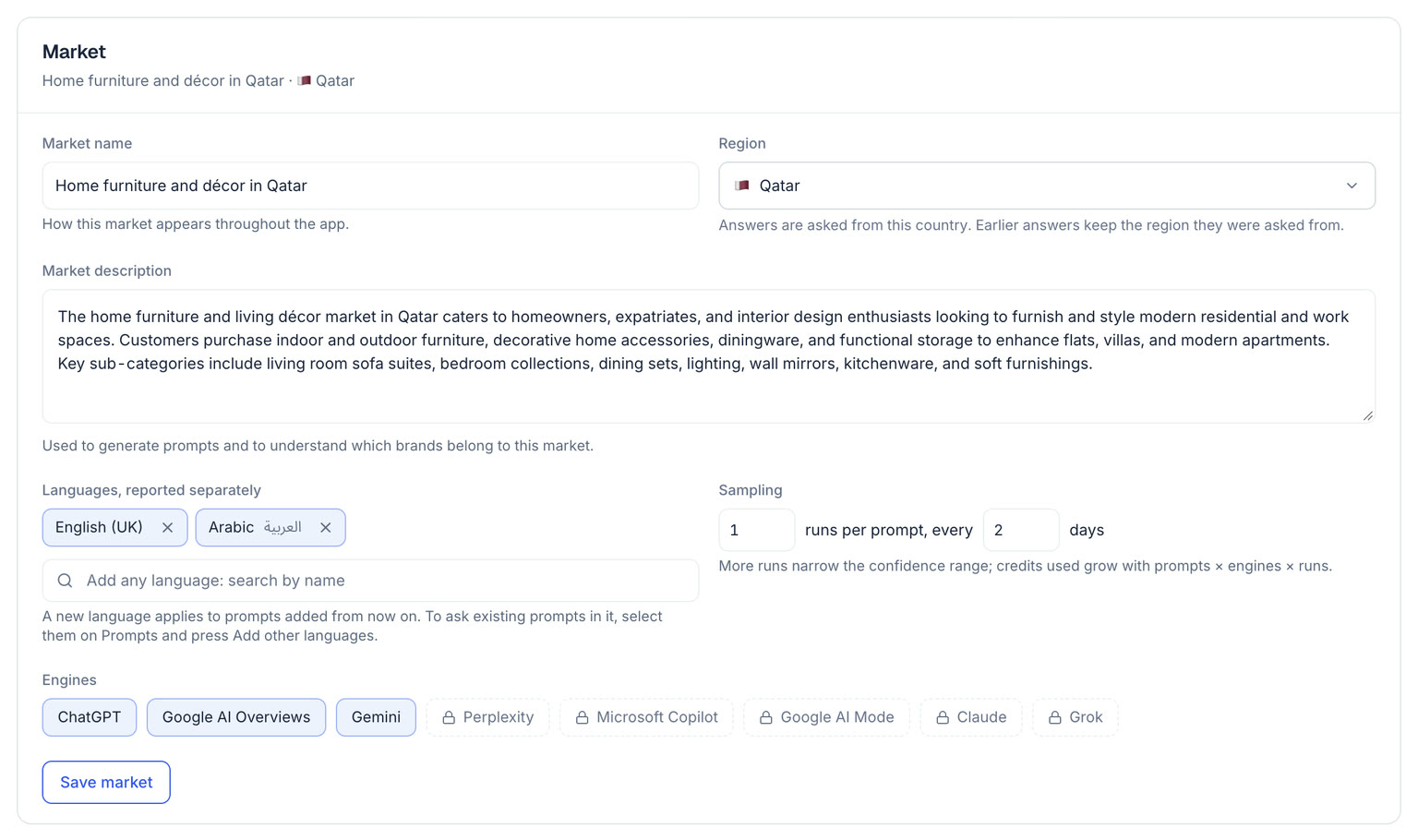
- Region: each market is measured from one country. Add another with Settings → Collection → Add a region; it copies your brands, topics and prompts, rewriting the ones that name the first country for the new one, and gets its own dashboard. Switch regions from the top bar.
- Languages: choose any languages in Settings → Market: English (UK), Arabic, French, Hindi or any other. Each question is asked in every language and reported separately, so you can see if AI treats you differently in one of them.
Settings at a glance

| Tab | What it holds |
|---|---|
| General | Workspace name and website |
| Market | Market details, region, languages, engines, how often and how many times each prompt runs, engine weights, your brand and competitors (with aliases and local spellings) |
| Members | People, roles and invitations |
| Notifications | Your weekly digest email, and what the bell in the top bar shows you |
| Collection | How each engine is collected, answers per month, Run now, recent runs and adding a region |
| Scorers | Your own questions judged on every answer, such as “Does it mention free delivery?” |
| Integrations | AI answers and Google data, Google Maps reviews, Google Shopping, and Vercel or Cloudflare for AI traffic |
| Plan and credits | Your plan, what it includes, and where your credits go. See Plans and credits |
| Change log | Dated notes (a launch, a new page, a price change) shown on charts, so you can see what moved the numbers |
Elaris Visibility by ElarisLabs AI